In short
To generate AI product images for Shopify, install an AI image app from the Shopify App Store, select your products, choose a look, then review the results and publish the best ones. With Fulfily, all of this happens inside your Shopify admin, starting from the product photos you already have, and nothing changes in your store until you publish.
- No photoshoot needed: a clear photo of your real product is enough.
- Fulfily reads your product photos, title and description, so there is nothing to upload or retype.
- You review every image before it goes live.
- Published images get alt text and a filename automatically.
What do you need before you start?
- A Shopify store.
- One clear photo of each product. A plain supplier photo or a simple phone photo is enough. It doesn’t have to look good, but the product must be sharp and fully visible.
- Optional: the product size in the product description, for example “30 x 20 x 10 cm”. It helps the product come out at a believable size.
Step 1: Install Fulfily from the Shopify App Store
Open the Fulfily listing on the Shopify App Store (opens in new tab) and install the app on your store. It opens inside your Shopify admin, in the Apps section.
The free plan includes 4 credits, enough for 2 High quality images, so you can test it on one of your own products first. If you want more images every week, the Starter plan comes with a 7-day free trial. You can see all plans in the pricing section.
Step 2: Choose the products you want new images for
Open Bulk Generate and tick the products you want new images for. Fulfily lists the products from your store with their photos, so there is nothing to upload. You can filter the list, for example to show only active products, and the tags show which products already have Fulfily images.
If you want to work on a single product in more detail, use Custom Generate instead. There you choose which of the product’s photos Fulfily should use, and you get a suggested prompt for each image, based on the product title and product description. You can change every prompt before you generate.
Step 3: Choose a look and the settings
The quickest start is a preset. On the Presets page you pick a look, for example a clean white catalog photo, a lifestyle scene or an on-model photo, and then select your products. The preset fills in the settings in Bulk Generate, and you can still change any of them before you generate.
You can also build the look yourself. Choose a background, a photo model and a pose, or add example images to show the style you want. You can use the same background, model and pose for a whole collection, so all your products share one look.
Optional: instructions and settings
You can also describe the look in your own words in the Instructions field, for example “soft daylight, warm and cozy home feel”.
Our recommended settings:
- Quality: High or Ultra. High gives sharp, detailed images; Ultra keeps the most detail for small text and jewelry.
- Aspect ratio: 1:1 (square). It works well on most Shopify themes, but you can choose any ratio you like.
- Number of images: 4 or more per product, so you have enough to choose from.
The Generate button shows how many credits the run will use before you start.
Step 4: Review the results and publish
After you click Generate, the images are created in the background, so you can keep working in your store. When they are ready, the Fulfily home page shows a message that your images are ready to review.
On the review page you see the new images next to the original product photos. From there you can:
- Uncheck images you don’t want to publish.
- Regenerate a single image, with optional example images to guide it.
- Drag the new and original images into the order you want them on the product page.
- Rate the product size (too small, good or too big) and leave feedback for the next run.
When you are happy with the selection, click Publish images. Fulfily adds the checked images to the product’s media in Shopify, in the order you set.
If you generated images for many products, you can also publish them all at once from Bulk Generate. There you choose where the new images go: before your current photos, after them, or from a position you pick. For example, you can keep your original main photo first and add the new images from the second position.
Every published image gets descriptive alt text and a readable filename based on the product. This helps search engines understand your images, and it is also good for accessibility. You can find all past runs on the History page.
What can the results look like?
Here is one example. The first image is a simple phone photo of a stoneware mug. The other three were generated from it with three different presets:
Input photo
Generated with FulfilyCafé Mug
Generated with FulfilySunny Kitchen Counter
Generated with FulfilyClean White Catalog
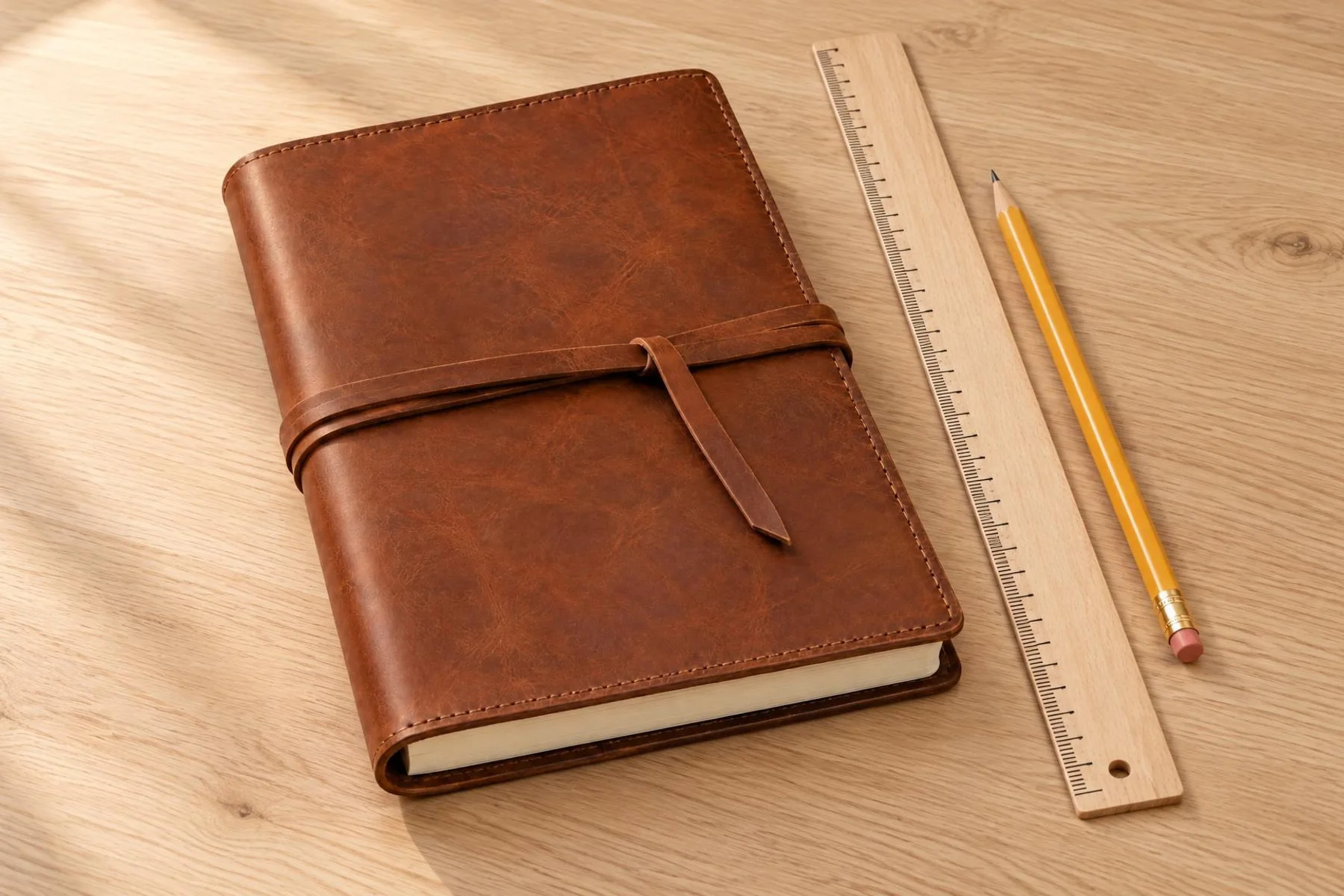
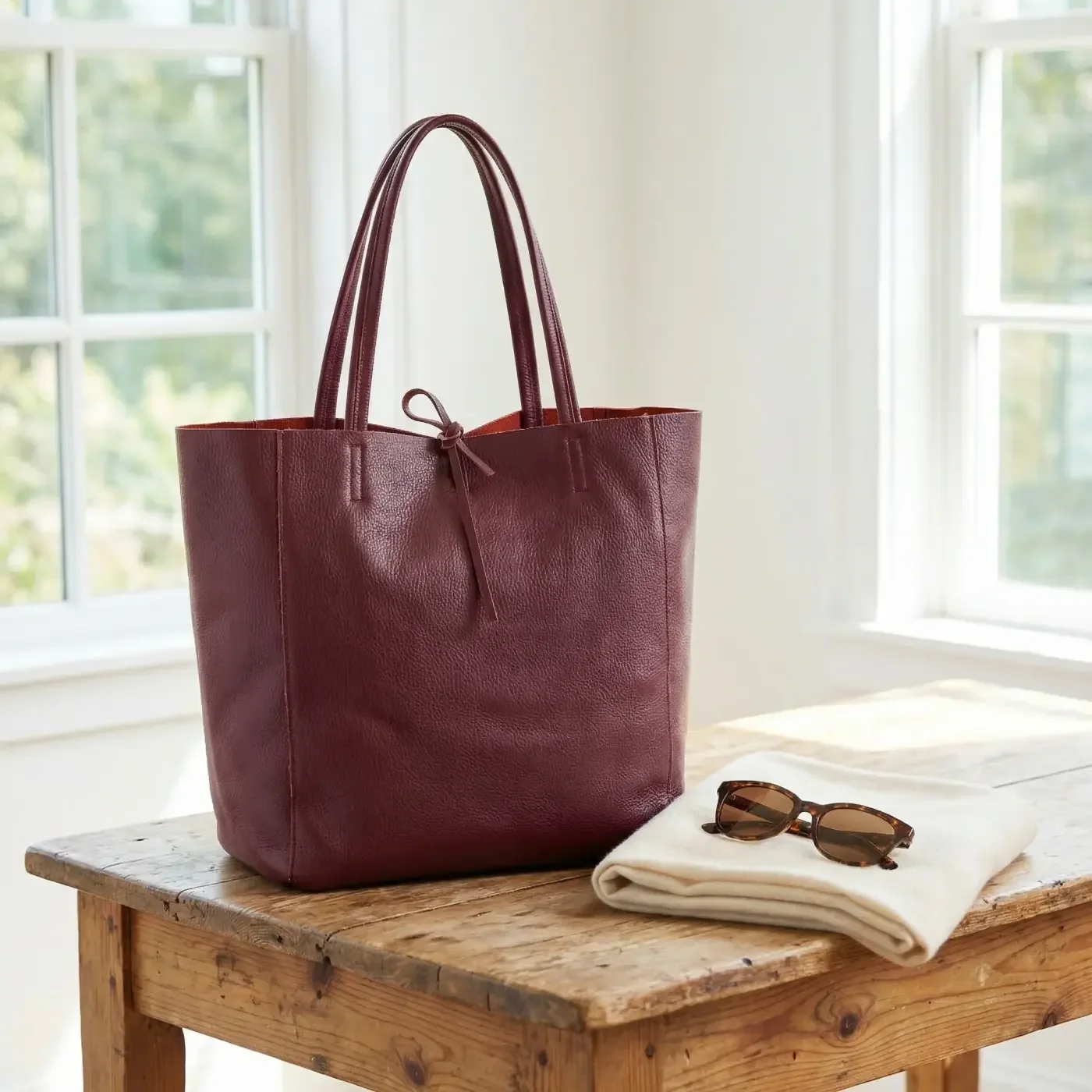
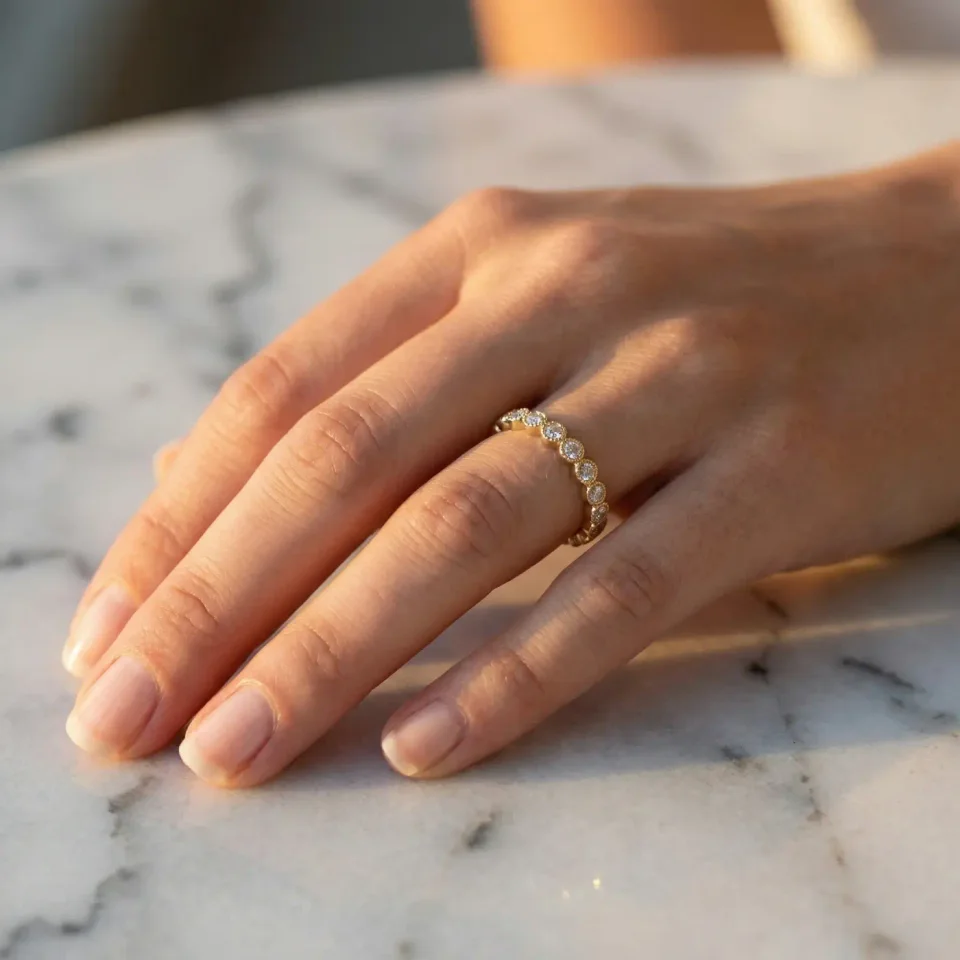
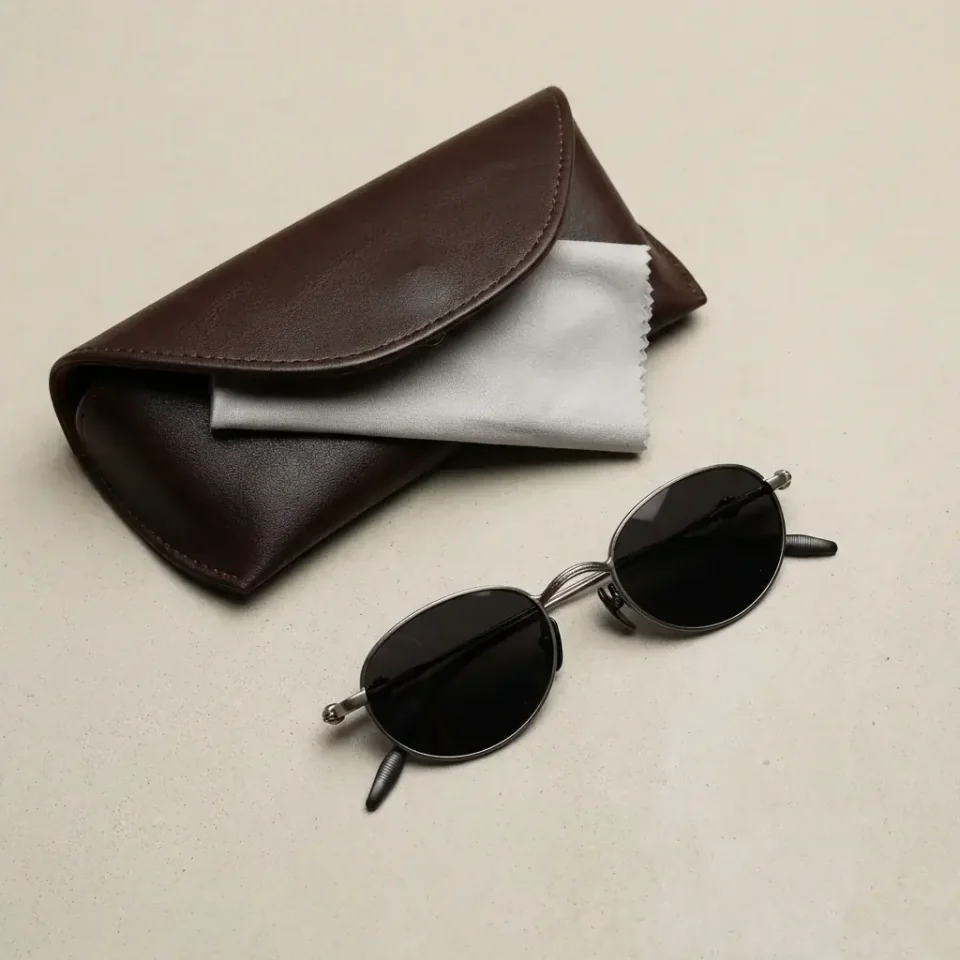
The same workflow works for very different products. A furniture store can show chairs in a real room, and an accessories store can show sunglasses on a person:
You can find more examples, sorted by product type, in the image gallery and on the AI product photos pages for jewelry, clothing, home decor, bags, beauty and other products.
How do you get the best results?
- Start with a sharp, bright product photo. The product should be fully visible, without other products in the photo.
- Write the real size in the product description. Fulfily uses it to show the product at a believable size.
- Keep one look per collection. Reusing the same background, model and pose makes your store look consistent.
- Always review before you publish. AI images can differ from the original product. Remove any image where a detail isn’t right, or regenerate it.
To learn which photos every product page should have, read our guide on how product photos affect your Shopify sales.
Frequently asked questions
Is Fulfily free to use?
Yes, you can start for free. The free plan includes 4 credits, which is enough for 2 High quality images. For more images every week there are paid plans, and the Starter plan has a 7-day free trial.
Do the images appear in my store automatically?
No. Nothing changes in your store until you publish. You review the images first, remove the ones you don’t want and then publish the rest to the product. If you created images for many products, you can publish them all at once with bulk publishing.
Can I use the images commercially?
Yes. You can use the images in your store, in ads and anywhere else, also after you uninstall the app.
Will the product look exactly like my real product?
In most images, yes, because Fulfily builds every image from your own product photos, title and product description. Very small text, logos and detailed jewelry are the hardest parts, so check each image and regenerate any that aren’t right before you publish.